Module 02
Account setup
Build your car page: username, photo and bio.
Your account is the first thing viewers check. Set it up so it looks like a real person’s car page, not a clipping page. Follow the five steps in order.
Step 1: Create an account
Create a new Instagram or TikTok account (or both) with a phone number or an email address.
If you already own a large car theme page, you can use that instead, or use both.
Step 2: Choose a username
Pick a random personal-style username related to cars or driving.
| Pattern | Examples |
|---|---|
| name + rides / drives | jack.rides, hawk.drives |
| drive / ride + name | drivewbeam, ridewbeam, ridewithmax |
| name + on road / car | lukeonroad, m4withsci |
Step 3: Set a profile picture
Upload either:
- A photo of a car (for example, a BMW M4), or
- A selfie-style photo with a car
Step 4: Set up your bio
Your bio should look like a real person’s account. Start with a normal bio (for example, 21 | M4 Comp), then add the LiveMap link line underneath.
| Platform | Link line |
|---|---|
| Your tracked link from the Clipper leaderboard | |
| TikTok (link allowed) | Your tracked link from the Clipper leaderboard |
| TikTok (no link) | Search “LiveMap: Drive & Connect” on the App Store or “LiveMap” on the Play Store |
Bio example:
21 | 05 YZF-R1
Search “LiveMap: Drive & Connect” on the App Store / “LiveMap” on the Play Store
Step 5: Copy the example accounts
These are real examples of what your page should look like:
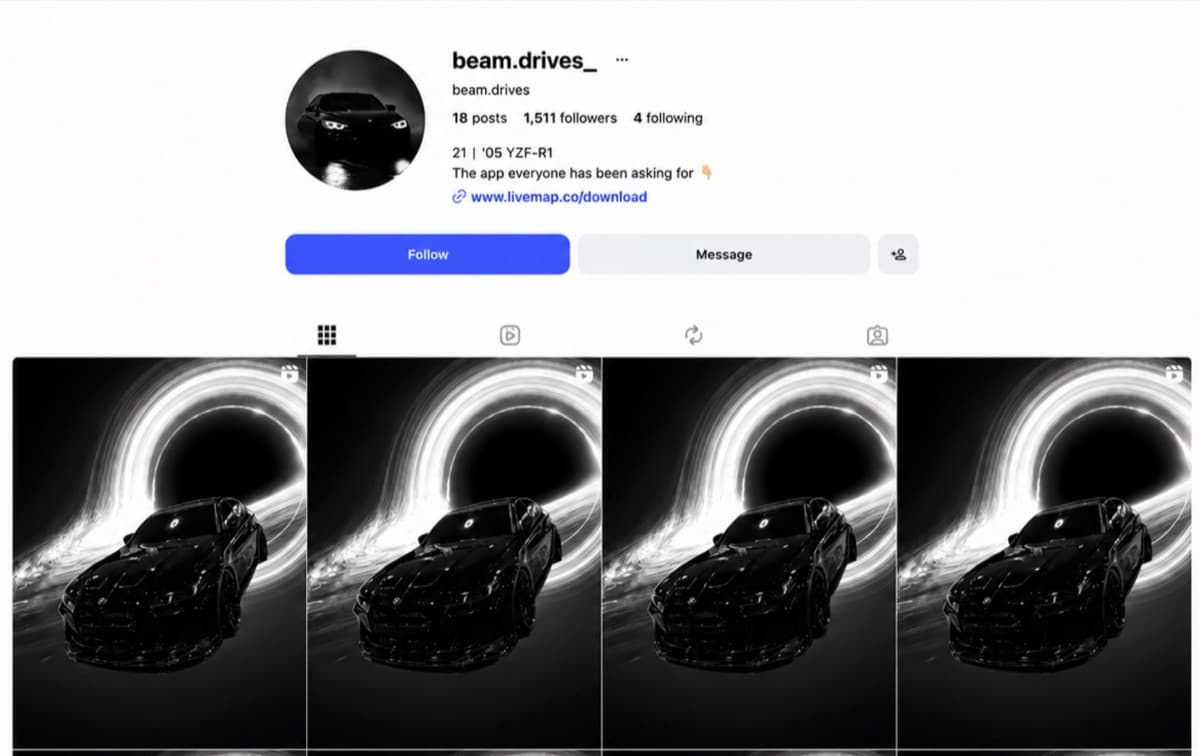
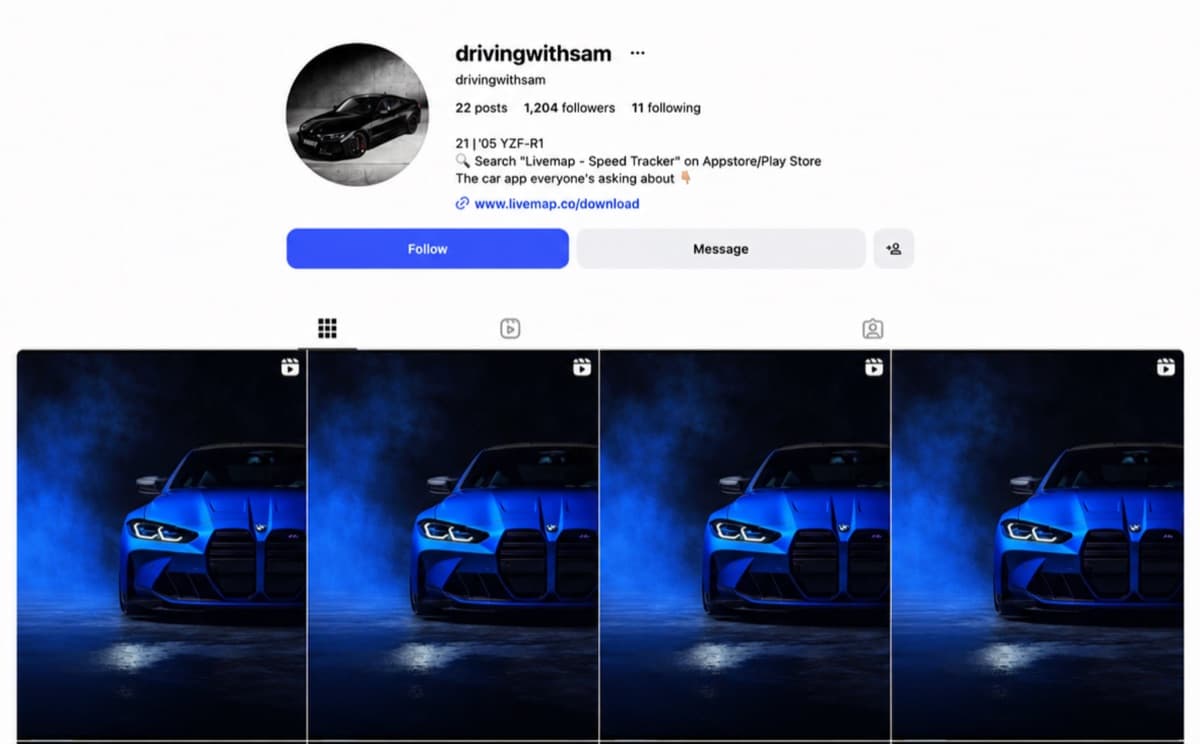
These example bios show the plain download link. Put your own tracked link there instead, so your installs count.